


You know that moment when a meeting ends, and you can’t remember if the deadline was Tuesday or Thursday? Zoom AI Companion 2026 was built for exactly that. It’s an assistant that lives inside Zoom—no extra downloads, no separate login—and it quietly summarizes calls, takes notes, and drafts follow-ups while you focus on the conversation, not your keyboard.
You Missed a Meeting Detail. Now What?
Here’s a scene you’ll recognize. You’re three calls deep, someone drops a key decision, and by the time your next meeting wraps, you can’t recall who agreed to do what. You scan the chat. Vague. You message a colleague. They’re not sure either. I’ve lost count of how many times I’ve been that person, scrolling transcripts like I’m hunting for a lost receipt.
Zoom AI Companion 2026 is designed to catch those details. It handles note-taking, meeting summaries, and follow-up tasks automatically—so your memory isn’t the bottleneck.
This guide breaks down what the 2026 version actually does, how it works before, during, and after meetings, who benefits most, and what’s genuinely free versus what needs a paid plan.
What Is Zoom AI Companion?
AI Companion is a generative AI assistant woven into Zoom Workplace. No third-party bolt-on—just a native part of the platform. Under the hood, it blends Zoom’s own models with large language models from third parties like OpenAI (GPT-4) and Anthropic (Claude), an approach Zoom calls “federated AI.”
The current release, AI Companion 3.0, launched in December 2025 and rolled out substantial updates through early 2026. It graduated from simple meeting summaries to what Zoom calls “conversation to completion”: turning real-time talk into finished outputs—documents, follow-up emails, task lists.
You can reach it at ai.zoom.us or through a dedicated AI Companion tab inside the Zoom Workplace desktop app.

What Zoom AI Companion Can Do
Here’s the feature set, explained plainly.
1. Meeting Summaries
When a Zoom meeting ends, AI Companion generates a written summary from the live transcript. It flags key points, decisions, and action items. No exporting or uploading required—it pulls the recording and transcript from your meeting history automatically. Last Tuesday, I used it after a chaotic client call; the summary caught a budget figure I’d scribbled down wrong.
2. Automatic Note-Taking
“My Notes” captures details while you’re in a meeting—across Zoom, sure, but since 2026 also in Google Meet, Microsoft Teams, and Cisco Webex. If you’re typing your own rough notes, the AI uses the transcript to fill in the gaps. I once typed half a sentence about a Q3 goal, and it retroactively added the specific number from the speaker’s audio.
3. Task and Action Item Extraction
AI Companion scours meeting summaries and voicemails for follow-up items, then turns them into Zoom Tasks with owners and deadlines. Instead of digging through a transcript to remember what you promised, the task is waiting in your queue. It’s not perfect—I’ve seen it miss a nuanced “I’ll check with legal” once or twice—but it catches most explicit commitments.
4. Chat Assistance
Inside Zoom Team Chat, you can ask AI Companion to summarize long threads, suggest replies, or draft responses. If you’ve been away and return to a busy channel, it catches you up without making you read every message. Think of it as a SparkNotes for your Slack-style chatter.
5. Document and Email Drafting
Using the context from your meetings, the assistant can draft follow-up emails, project plans, and status updates. It connects to Gmail and Outlook accounts to pull in email context when generating responses. You can export drafts to Zoom Docs, Microsoft Word, or PDF. I’ve used it to turn a scoping call into a one-page proposal starter, and it saved me an hour of stitching notes together.
6. Daily Reflection Report
New in 2026, this automated digest pulls together your meetings, tasks, and updates from the previous day into a single report each morning. It’s meant to replace the first-hour catch-up ritual most of us do. I tried it for a week—it was eerily thorough, though it once promoted a casual mention of “pizza” into a formal task.
How It Works: Before, During, and After Meetings

Before the Meeting
AI Companion can pull context from past meetings, documents in Google Drive or Microsoft OneDrive, and connected email accounts to help you prepare. Walking into a client call? You can ask it to summarize your last three conversations with that team. It’s like a prep memo without the busywork.
During the Meeting
Transcription runs silently in the background. A visible indicator tells everyone when it’s active—no stealth recording. You can query AI Companion in real time, like “What did we decide about the budget in the last meeting?” and it retrieves answers from your meeting history. I’ve used this mid-call to settle a “who said what” debate in five seconds flat.
After the Meeting
The summary appears in your AI Companion panel and in your inbox if you set that up. Action items get extracted into Zoom Tasks. From there, you can draft follow-ups, turn notes into documents, or share the summary with colleagues who missed the meeting. It’s that simple. Most of the time.
For setup and troubleshooting, Zoom’s support documentation covers configuration for individual accounts and enterprise deployments.
Who Benefits Most
- Remote and hybrid workers who are in back-to-back meetings and can’t manually document everything
- Team leads and managers tracking decisions and action items across multiple conversations
- Sales and customer success teams who need fast call summaries and follow-up drafts (full disclosure: I tested it on a product demo, and it nailed three feature names I’d have otherwise forgotten)
- Students using Zoom for online classes who want structured notes without splitting their attention
- Anyone who frequently joins late or skips a meeting and needs a reliable catch-up
Free vs. Paid: What You Actually Get
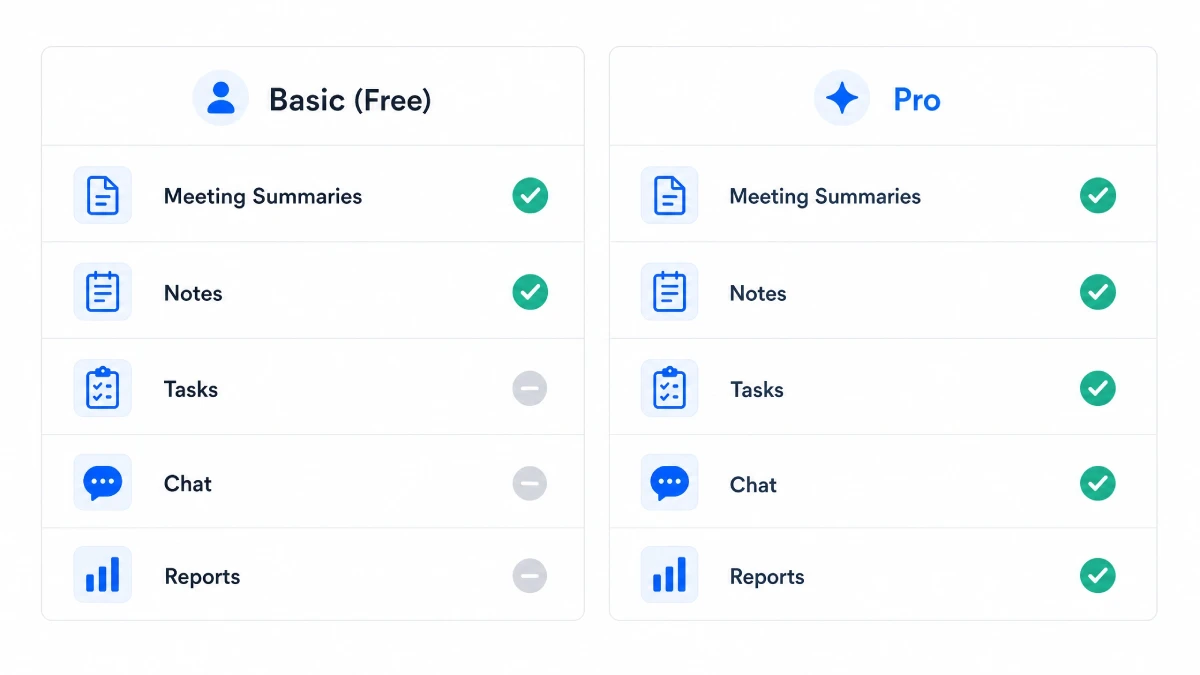
This is where the waters get muddy, so here’s the clean breakdown:
| Zoom Basic (Free Plan) | Paid Zoom Workplace Plans (Pro/Business/Enterprise) |
| Limited AI Companion access | Full meeting summaries at no extra cost |
| Basic transcription features | AI note-taking and task extraction |
| Trial access to some AI features | Chat thread summaries and reply drafting |
| No full note-taking or task extraction | Daily Reflection Reports |
| Document drafting from meeting context |
Zoom Workplace Pro starts at $15.99 per user per month (billed annually). AI Companion is included at no additional cost with all eligible paid Zoom Workplace plans. On the free Basic plan, you’re limited to a trial taste of some features—not the full toolkit.
There’s also a standalone AI Companion subscription at $10 per month that doesn’t require a Zoom Workplace license. That’s handy if you only need the AI features without upgrading your whole plan. Prices may vary slightly by region.
Note: AI Companion 3.0 features are still rolling out and may not be available everywhere at the time of writing.
Key Insights
- AI Companion automates meeting summaries—no manual notes or transcript exporting needed.
- It works across third-party platforms like Google Meet and Microsoft Teams, not just Zoom calls.
- The federated AI model draws on multiple providers (OpenAI GPT-4, Anthropic Claude) rather than one single engine.
- Task extraction is new in 2026: spoken action items become actual Zoom Tasks with deadlines.
- It’s not a replacement for human judgment—summaries need review, especially for complex or sensitive discussions.
Traditional Meetings vs. AI-Assisted Meetings
| Traditional Meetings | With Zoom AI Companion |
| Manual note-taking during calls | Automatic summaries generated post-call |
| Risk of missing key decisions | Decisions captured in the meeting summary |
| Follow-up emails written from memory | Drafts generated from meeting context |
| Time spent searching past transcripts | AI retrieves past context on demand |
| Action items tracked manually | Tasks are created automatically with owners |
What AI Companion Doesn’t Do
A few honest limitations:
- It doesn’t think for you. Summaries reflect what was said, not what should have been decided. I once had it summarize a “we’ll revisit” as a firm commitment, so a human review step is non-negotiable.
- Accuracy isn’t guaranteed. Transcription quality swings wildly with audio clarity, accents, and background noise. During a noisy all-hands, I saw it transcribe “HIPAA compliance” as “hippo compliance”—amusing but not something you want in a client summary.
- It doesn’t work offline. All processing runs in the cloud. No internet, no AI features.
- Your meeting data isn’t used to train AI models. After a well-publicized backlash in 2023, Zoom confirmed it won’t use your content for model training without consent.


FAQs
What is Zoom AI Companion 2026?
It’s an AI assistant built directly into Zoom Workplace. It summarizes meetings, generates notes, extracts action items, drafts follow-ups, and helps you catch up on missed conversations. The 2026 release is AI Companion 3.0, launched in December 2025 and expanded through early 2026.
Is Zoom AI Companion really free?
Partially. The free Zoom Basic plan offers limited trial access to some features. The full set—meeting summaries, note-taking, task extraction, and document drafting—is included at no extra cost with paid Zoom Workplace plans (Pro and above). You can also buy a standalone AI Companion plan at $10 per month if you don’t need a full Zoom Workplace subscription.
How accurate are AI meeting summaries?
Accuracy hinges on audio quality. One or two speakers with a clean mic? Pretty solid. A noisy room with overlapping voices? Expect some odd transcriptions, especially with technical jargon, names, or non-native English speakers. Always proofread before sharing anything important.
Can AI replace note-taking completely?
Not entirely. AI Companion does the heavy lifting of capturing what was said, but it can’t judge what matters most to your specific project or flag when a decision contradicts a previous one. Think of it as a starting point—human review is still essential for anything consequential.
Who should use Zoom AI Companion?
Anyone who spends a big chunk of their day in video meetings and struggles to stay on top of follow-ups, decisions, or action items. It’s most useful for remote workers, managers, sales teams, and students on paid Zoom plans who want to cut the administrative overhead that comes with a packed calendar.
The Bottom Line
Zoom AI Companion 2026 is a practical productivity tool, not a magic button. It trims the time you spend writing notes, hunting past meetings, and crafting follow-ups. If you’re already on a paid Zoom Workplace plan, it’s included—so there’s no reason not to turn it on.
The 2026 version is meaningfully more capable than what shipped two years ago. Cross-platform note-taking, task automation, and document drafting from meeting context are real time-savers for people who live in meetings.
Where it falls short: summaries aren’t flawless, and the tool won’t replace the judgment you bring to a conversation. Use it like a decent assistant—let it tackle the routine stuff while you handle the decisions that matter.