


You know that feeling. You spot something cool — a jersey, a sneaker, a lamp, a painting — and you want to find it. But you don’t know the name. All you have is a photo.
Image search engines solve exactly that problem. Upload a picture or paste a URL, and they’ll tell you where the image came from, what the item is, and where to buy it. No typing required. Just point, snap, and search.
Google Images is the obvious starting point, but it’s far from your only option — and it’s not always the best one. Depending on whether you’re shopping, fact-checking, or tracking down a high-res wallpaper, different tools produce wildly different results.
In this guide, you’ll find:
Let’s get into it.
1. Google Images — The One You Already Know (But Are You Using It Right?)

Google Images is most people’s default, and that makes sense. It’s built into the browser, it’s fast, and the index is enormous. Most users, though, only know how to type keywords — they’ve never searched by image by uploading a photo or pasting a link.
Here’s what changes when you do: clicking the camera icon in the search bar lets Google identify plants, landmarks, products, animals, and even faces (in some regions). That turns it from a simple image gallery into something far more useful.
For casual use — figuring out what a building is, identifying a flower, or pulling up reference photos — Google Images is the fastest starting point. It’s not the deepest tool for shopping, and useful matches are sometimes buried below sponsored results, but as a first stop, it covers a lot of ground.
2. TinEye — The OG of Reverse Image Search

TinEye has been around since 2008 — ancient by internet standards. Developed by Idee Inc., it was built with one specific mission: to find where an image originally came from and track every place it’s appeared since. It’s not trying to be everything. It does one thing very well.
The standout feature is its ability to recognize an image even after it’s been cropped, color-adjusted, or resized. That makes it the go-to reverse image search tool for anyone who wants to verify the source of a photo, check whether an image is being used without credit, or locate the highest-resolution version of a picture floating around the web.
If you grabbed a wallpaper-quality shot from a random Reddit post and want to find the original 6000px version, TinEye is your tool. For product shopping or finding visually similar content, it’s less useful — but for source-tracking, nothing else comes close.
3. Yandex Images — The Underrated One That Surprises Everyone

Yandex is Russia’s dominant search engine, and most people outside Eastern Europe have never thought to use it for image searches. That’s a mistake. Yandex Images consistently outperforms Google at identifying people, finding near-duplicate images, and surfacing results that Google’s algorithm misses entirely.
It’s especially strong with faces and merchandise.
- Trying to identify a player in a photo?
- Looking for a specific visual search result from an overseas retailer?
- Hunting down a fan-made World Cup kit you spotted on social media?
Yandex regularly pulls results that Google doesn’t.
The interface isn’t as polished, and you’ll sometimes get results in Russian — but the underlying search quality for reverse image lookup is legitimately impressive. Don’t overlook it.
4. Bing Visual Search — Microsoft’s Quiet Contender
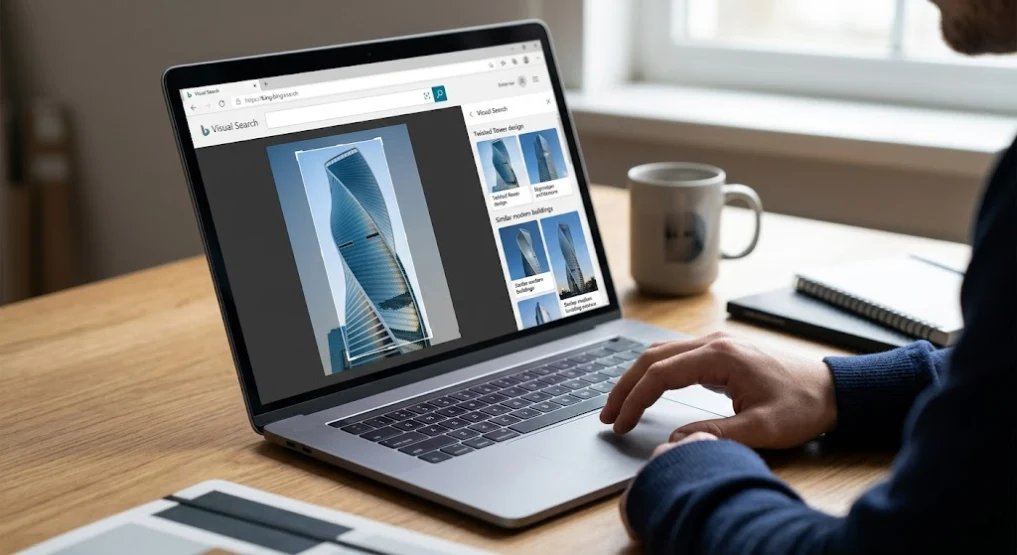
Bing Visual Search doesn’t get much attention, but it’s more capable than most people expect. Microsoft has invested heavily in image recognition, and the results for product searches are solid — sometimes better than Google’s.
One genuinely useful feature lets you draw a selection box around part of an image and search just that section. Found a photo of someone wearing three interesting things, but only care about the shoes? Bing lets you isolate that detail and find the product by photo with that level of precision.
It’s built into Microsoft Edge and Windows 11, so if you’re already on those platforms, it’s one right-click away. Otherwise, you can use it directly at bing.com/visualsearch. Not the first tool I’d recommend for most people, but if you’re on a Windows machine, it earns a spot in your toolkit.
5. Pinterest Lens — Visual Search Meets Inspiration

Pinterest Lens lives inside the Pinterest app, and it does something the other tools on this list don’t: it connects what you’re looking at to ideas, aesthetics, and moods rather than just identical matches. Point it at a piece of furniture, an outfit, or a color palette, and it finds similar pins — not just the exact item.
For shoppers and style-conscious buyers, that’s a real advantage. Spot a lamp you love in a random blog photo while redesigning a room? Pinterest Lens will find dozens of similar options at different price points. The same applies if you’re building a gameday outfit and want fan gear that matches a specific look.
It’s a photo search tool that doubles as a discovery engine. Results are confined to Pinterest’s ecosystem, so you won’t find things that haven’t been pinned there — but for mainstream products and lifestyle items, that’s rarely a limitation.
6. Lenso.ai — AI-Powered and Organized

Lenso.ai takes a different approach than the others. Instead of returning a wall of results and leaving you to sort through them, it organizes what it finds into categories: similar images, same people, same places, and more. That structure makes it significantly easier to use when you’re not sure exactly what you’re looking for.
The image recognition quality is sharp, and the categorized output saves real time. Upload a photo of a product, and you’ll see one section for visually similar items and another for exact matches — no guessing which is which.
It’s a good choice when other tools are giving you too much noise. Lenso.ai is still growing its index, so very niche or obscure images may come up short. For everyday reverse image searches, though, the organized results make it stand out.
7. Amazon StyleSnap — Built for Shoppers

Amazon StyleSnap is exactly what it sounds like: a shopping-focused visual product finder built into the Amazon app. Take or upload a photo of clothing or accessories, and it matches them to products available on Amazon. No typing, no guessing.
It works especially well for fashion. See a jacket in a YouTube thumbnail? StyleSnap finds the closest Amazon listings in seconds. It can also search screenshots, so that the Instagram photo you saved six months ago is fair game.
The limitation is obvious: it only searches Amazon’s catalog. If what you’re looking for isn’t sold there, you’re out of luck. But if you’re a regular Amazon shopper — and statistically, most US readers are — StyleSnap is one of the fastest ways to go from “I want that” to “add to cart.”
8. Shop AI — A Dedicated Image-to-Product Tool

Shop AI is the search engine inside Shopify’s Shop app, built from the ground up to help you find and buy products using photos. Unlike Amazon StyleSnap, it pulls from a wide network of independent Shopify stores — which means you’re more likely to find smaller brands, niche products, and fan-made gear.
That makes it a genuinely useful camera search option for FIFA merchandise, limited-edition jerseys, and fan-created items that major retailers don’t carry. If someone at the stadium was wearing something you can’t find on Amazon, there’s a real chance a small Shopify store has it — and Shop AI is how you get there.
It’s less well-known than the tools above, which is partly why it’s worth knowing about. The app is free, results are shoppable in seconds, and it covers a segment of the market that bigger engines miss entirely.
9. RIMG — One Search, Every Engine

RIMG takes a different approach than every other tool here: rather than being its own search engine, it submits your image to multiple engines at once and shows results side by side. Google, Yandex, Bing, TinEye — you don’t have to open four tabs and run the same search four times.
For anyone who does a lot of image lookup work — tracking stolen photos, researching products, verifying sources — this is a serious time-saver. Instead of cross-referencing results yourself, you get a consolidated view that makes patterns and matches easy to spot across engines.
For a quick, casual search, it’s more than you need. But for any kind of serious reverse image research, RIMG removes a significant amount of repetitive work.
10. Google Lens (App) — Your Phone’s Best Hidden Feature

Google Lens is Google Images with a significant upgrade — and unlike the desktop version, it’s built around your camera. Point it at anything in the real world, and it tells you what it is, where to buy it, how to find more, or how to translate text it sees in frame. It’s a genuine Swiss Army knife for visual searching.
For fans at a World Cup match, this is the standout tool. Spot a jersey in the crowd you’ve never seen before? Open Lens, point your camera, and within seconds you’ll know the team, the kit year, and where to buy it. The same goes for stadium food, sponsor logos, or any merch someone’s wearing nearby.
The ability to identify items from photos is the best of any mobile app right now, and it handles text, math, plants, animals, and products all in one place. Available through the Google app on both iOS and Android — if you only download one thing from this list, make it this one.
Which Image Search Engine Is Right for You?
| Tool | Best For | Free? | Mobile App? | Unique Strength |
|---|---|---|---|---|
| Google Images | Quick, general searches | Yes | Yes (browser) | Massive index, fast results |
| TinEye | Finding image source & origin | Yes | Browser only | Tracks edited/cropped copies |
| Yandex Images | Faces, products, overseas results | Yes | Yes | Beats Google for face & product ID |
| Bing Visual Search | Searching part of an image | Yes | Yes (Edge app) | Crop-and-search selection tool |
| Pinterest Lens | Style inspiration, home decor | Yes | Yes | Discovers similar aesthetic items |
| Lenso.ai | Organized, categorized results | Yes | Browser only | AI-sorted results by category |
| Amazon StyleSnap | Finding clothes on Amazon | Yes | Yes (Amazon app) | Screenshot-to-cart in seconds |
| Shop AI | Small brands & indie stores | Yes | Yes (Shop app) | Searches the Shopify store network |
| RIMG | Multi-engine power searches | Yes | Browser only | Runs all engines at once |
| Google Lens (App) | Real-world, camera-based search | Yes | Yes | Point the camera at anything, get answers |
So, Which One Should You Use?
For shopping — especially clothing, fan gear, or anything fashion-adjacent — start with Google Lens on your phone, or Amazon StyleSnap if you’re buying on Amazon. For smaller brands and limited-edition products (think FIFA merchandise from independent sellers), Shop AI is the tool most people overlook. When you want the widest possible net, Yandex will regularly surface results Google misses.
For tracking down image sources or finding a high-res original, TinEye is still the best at what it does. And if you have no idea where to start, RIMG runs everything at once and lets you compare — a solid fallback when one engine isn’t cutting it.
Pick one, try it on a screenshot you’ve been sitting on, and see what comes back. The best way to find out which tool fits your habits is to try these image search techniques on a real problem.

